PC and Laptop Hardware Essentials: A Practical Guide
Computer hardware forms the foundation of every computing system. From custom PC builds to laptop internals, understanding hardware components is essential for performance, reliability, and upgradability. With over six years of hands-on experience in PC building, laptop servicing, and hardware optimization, this knowledge comes from real-world practice rather than theory alone.
Understanding Computer Hardware
Computer hardware refers to the physical components of a system, including the processor, memory, storage, motherboard, power supply, and peripherals. Choosing the right hardware depends on workload requirements such as gaming, development, data science, or general productivity.
Desktop PC Components
Processor (CPU)
The CPU is the brain of the computer, responsible for executing instructions and processing data.
- Popular brands: Intel and AMD
- Key factors: core count, clock speed, cache
- Use cases: multitasking, gaming, virtualization
Motherboard
The motherboard connects all components and determines compatibility and expandability.
- Chipset and socket compatibility
- RAM slots and supported speeds
- PCIe slots for GPU and expansion cards
- BIOS/UEFI features
Memory (RAM)
RAM affects system responsiveness and multitasking capability.
- DDR4 and DDR5 standards
- Capacity: 8GB minimum, 16GB+ recommended
- Dual-channel configuration for performance
Storage
Storage determines system speed and data access times.
- HDD: high capacity, slower speeds
- SSD: faster boot and load times
- NVMe: highest performance via PCIe
Graphics Processing Unit (GPU)
The GPU handles graphics rendering and parallel workloads.
- NVIDIA and AMD discrete GPUs
- Integrated vs dedicated graphics
- Used in gaming, rendering, and AI workloads
Power Supply Unit (PSU)
The PSU provides stable power to all components and protects against electrical issues.
- Wattage based on system load
- 80+ efficiency ratings
- Importance of reliable brands
Cooling System
Cooling ensures thermal stability and component longevity.
- Air coolers vs liquid cooling
- Case airflow design
- Thermal paste application
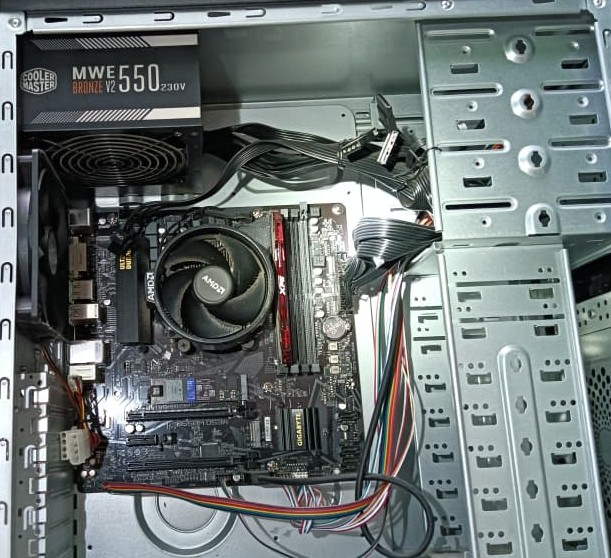
PC Building Process
Step-by-Step Build Overview
1. Select compatible components
2. Install CPU on motherboard
3. Apply thermal paste and mount cooler
4. Insert RAM modules
5. Mount motherboard in case
6. Install PSU and connect cables
7. Install storage and GPU
8. Power on and enter BIOS
9. Install operating system and drivers
Laptop Hardware Components
Laptop Processor and Chipset
Laptop CPUs are optimized for power efficiency and thermal limits.
- Lower TDP compared to desktops
- Soldered CPUs in most modern laptops
- Performance vs battery life trade-offs
RAM and Storage in Laptops
- Upgradeable vs soldered RAM
- M.2 SSD and SATA drives
- Importance of checking upgrade options before purchase
Battery and Power Management
The battery defines portability and long-term usability.
- Battery health degradation over time
- Charging cycles and replacement
- Power-efficient components
Thermal Design in Laptops
- Heat pipes and vapor chambers
- Compact cooling fans
- Thermal throttling limitations
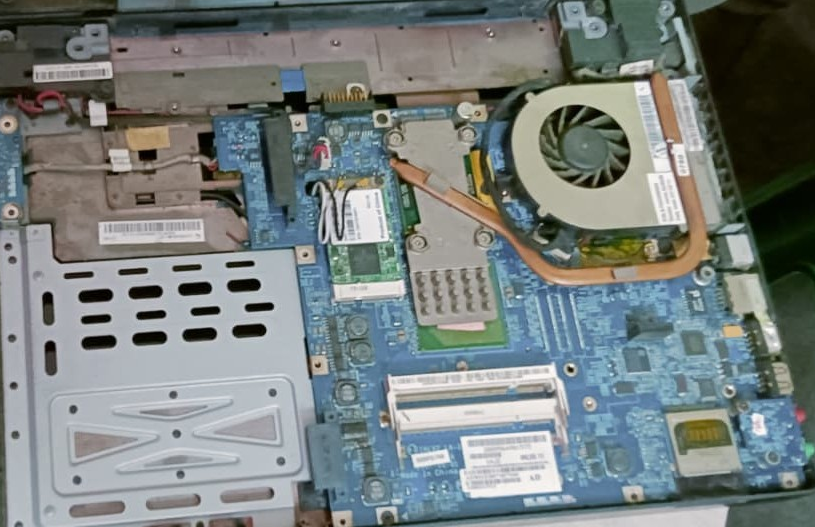
Hardware Troubleshooting Experience (6+ Years)
Common Desktop Issues
- No display or boot failure
- Overheating and random shutdowns
- Faulty RAM or PSU
- Driver and BIOS incompatibility
Common Laptop Issues
- Battery not charging
- Keyboard or touchpad failures
- Overheating due to dust buildup
- Broken hinges and display cables
Upgrade and Maintenance Practices
Desktop Upgrades
- RAM and storage expansion
- GPU upgrades for performance
- Cooling improvements
Laptop Maintenance
- Cleaning fans and vents
- Replacing thermal paste
- Upgrading SSD and RAM when possible
Conclusion
Deep hardware knowledge comes from years of hands-on experience. Building PCs, repairing laptops, and optimizing systems over six years has reinforced the importance of compatibility, cooling, power stability, and proper maintenance.
Whether assembling a custom desktop or maintaining a laptop, understanding hardware fundamentals enables better performance, longer lifespan, and informed upgrade decisions.