Mastering the Linux Terminal
The Linux terminal is the heart of the Linux operating system. While graphical interfaces make daily tasks easier, the terminal provides direct access to the system, offering speed, precision, and full control. Over time, the terminal became my primary workspace for understanding how Linux truly operates.
What is the Linux Terminal?
The Linux terminal is a text-based interface used to communicate with the operating system through commands. These commands are interpreted by a shell, which then interacts with the Linux kernel to perform actions such as file management, process control, and system configuration.
Why the Linux Terminal Matters
- Executes tasks faster than graphical tools
- Enables automation using scripts
- Essential for servers and remote systems
- Provides deeper system understanding
Linux Shells
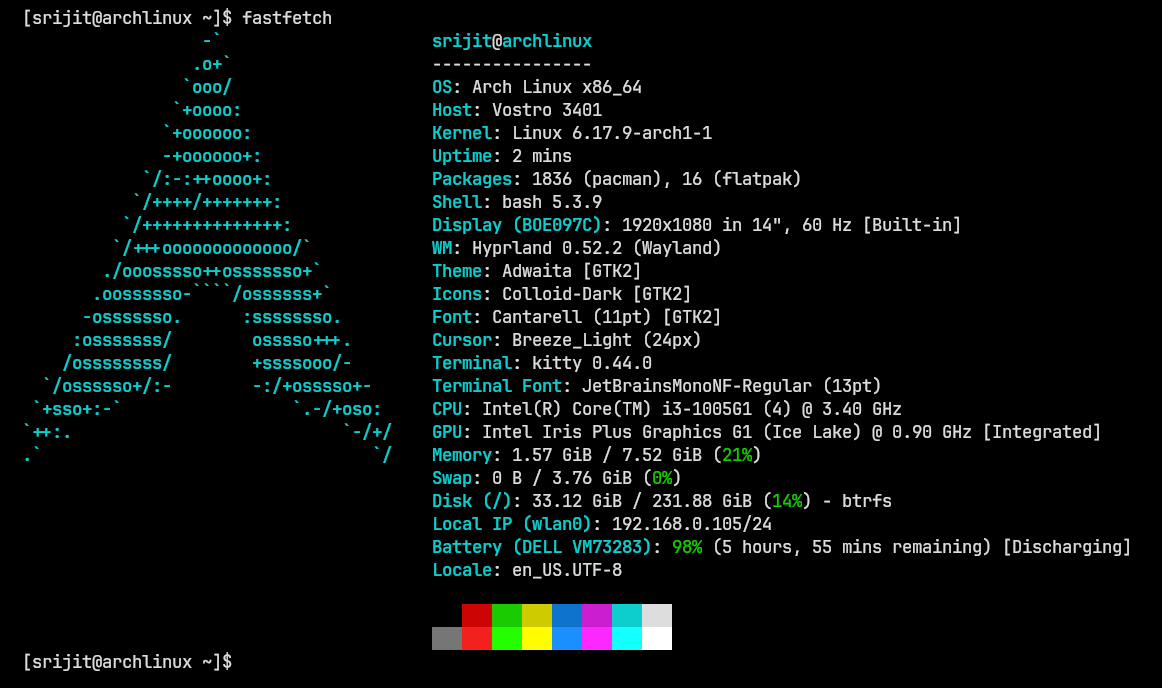
Bash (Bourne Again Shell)
Bash is the default shell on most Linux distributions. It is stable, powerful, and widely supported. Bash scripting is heavily used for automation, system administration, and DevOps workflows.
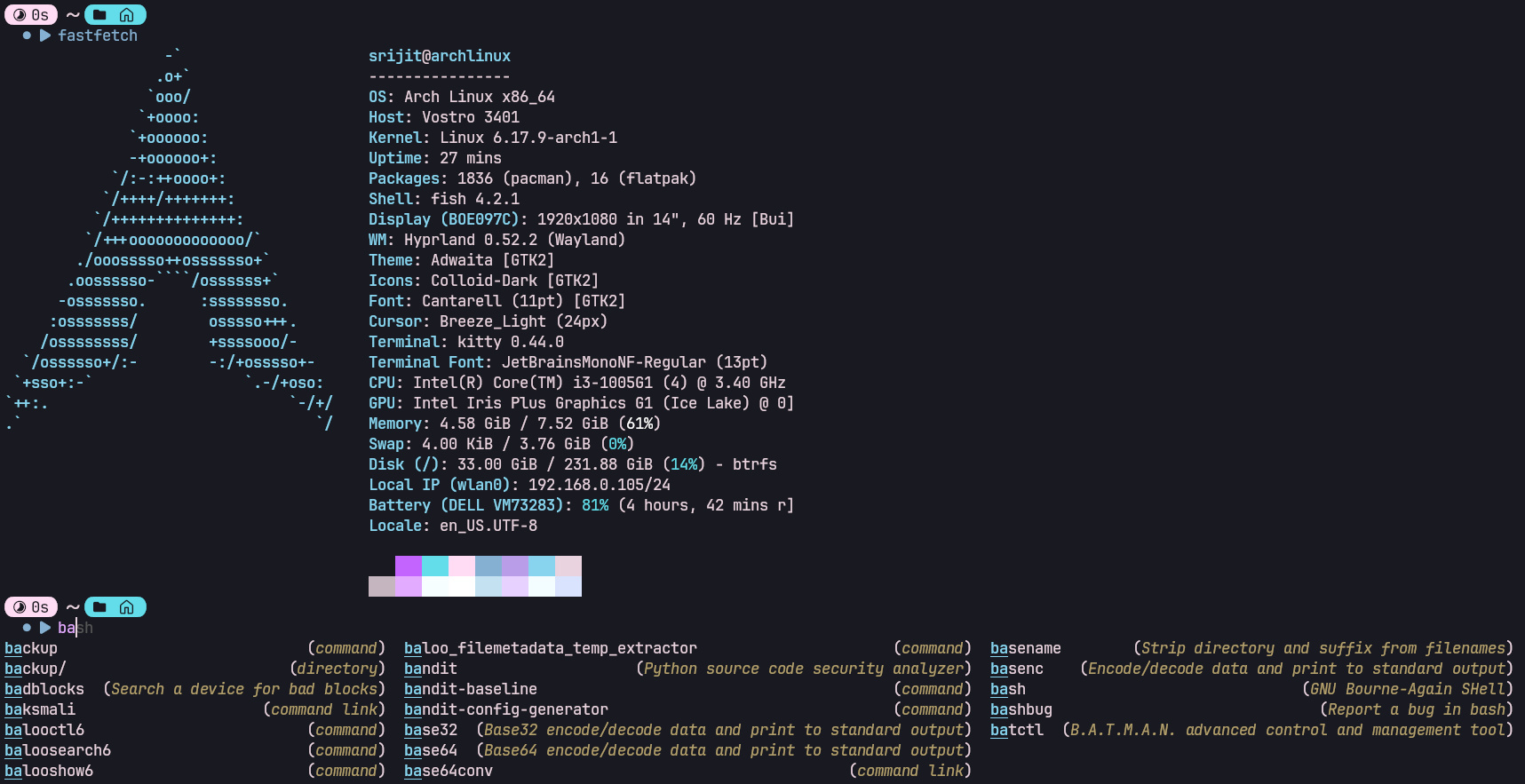
Fish (Friendly Interactive Shell)
Fish focuses on usability and works well without configuration. Features like syntax highlighting and command suggestions make it beginner-friendly yet powerful.
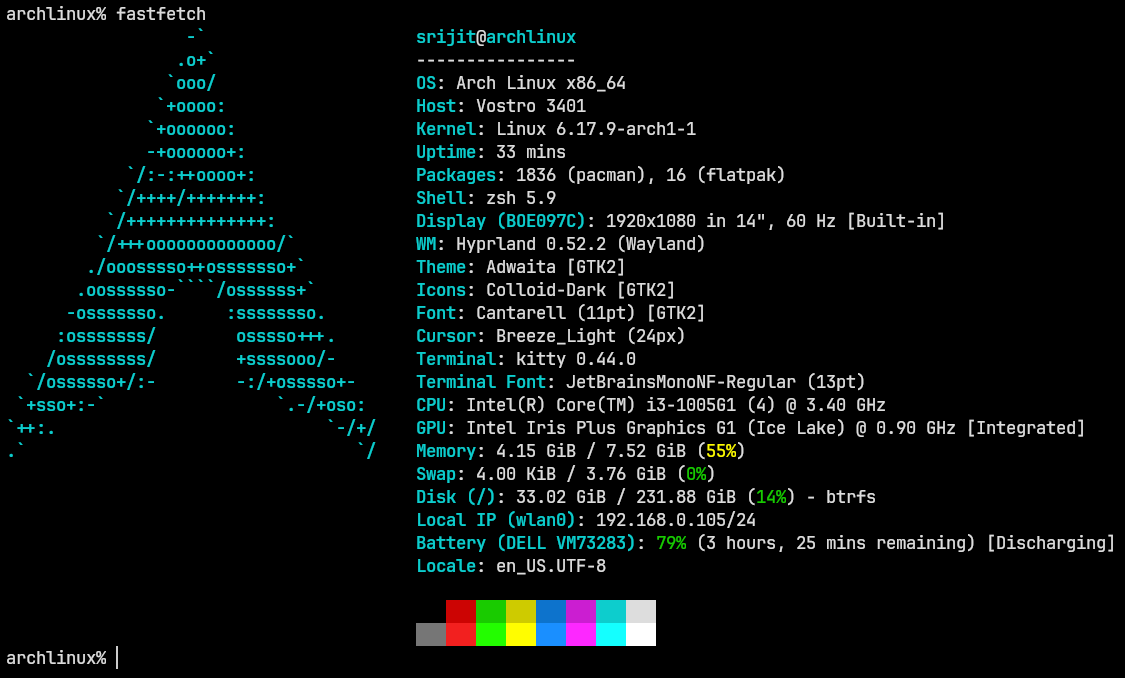
Zsh (Z Shell)
Zsh improves upon Bash with better auto-completion, command correction, and customization. Tools like Oh My Zsh make it a favorite among developers but i am not using it.
Terminal Text Editors
Terminal-based editors are lightweight, fast, and available on almost every Linux system. They are especially useful when working on remote servers.
Nano Editor
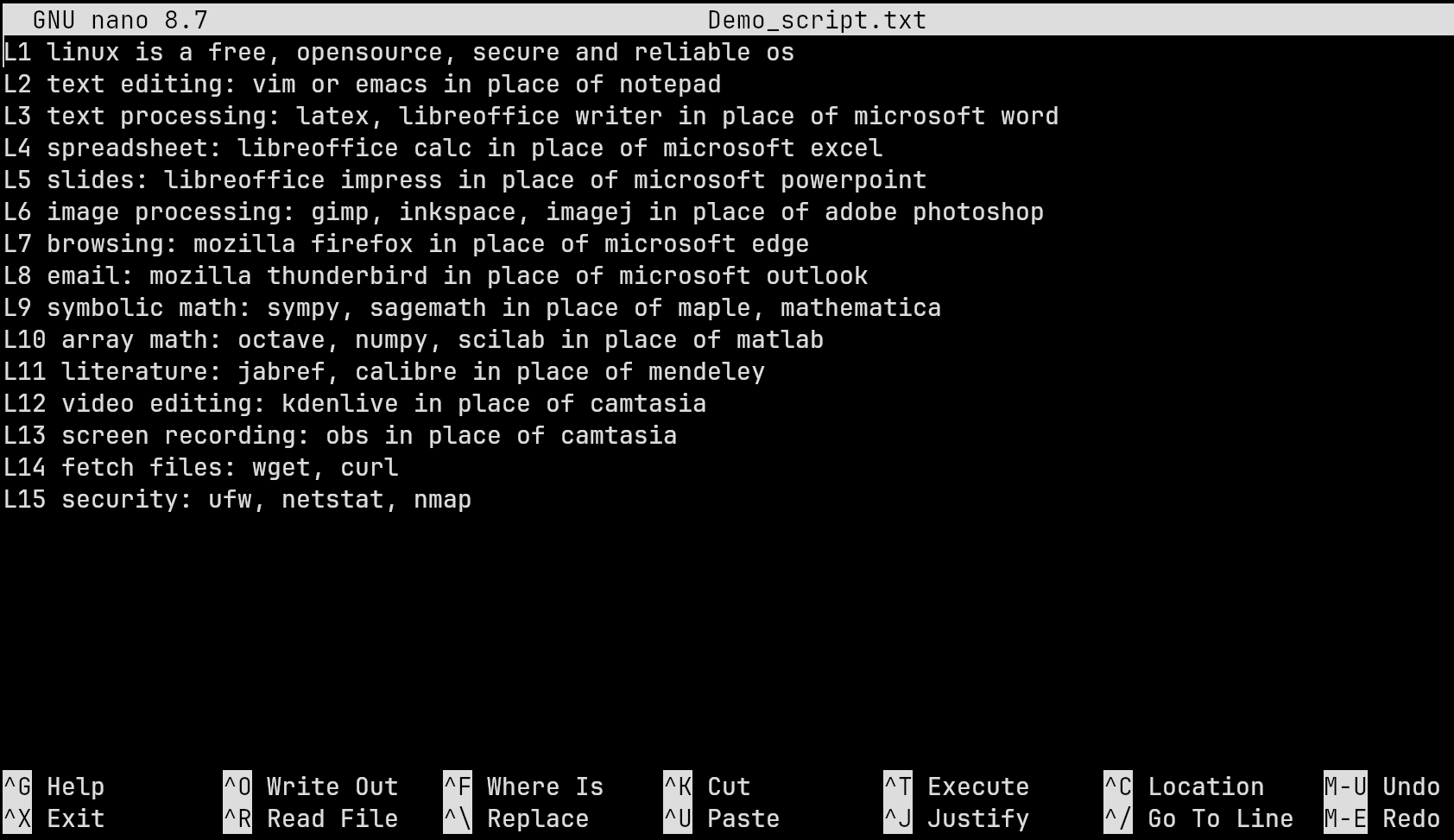
Nano is a simple, beginner-friendly editor. Shortcut keys are displayed at the bottom of the screen, making it easy to learn and use.
Common Nano Shortcuts
- Ctrl + O - Save the file
- Ctrl + X - Exit Nano
- Ctrl + W - Search for text
- Ctrl + K - Cut a line
- Ctrl + U - Paste a line
- Ctrl + G - Open help menu
Vim Editor
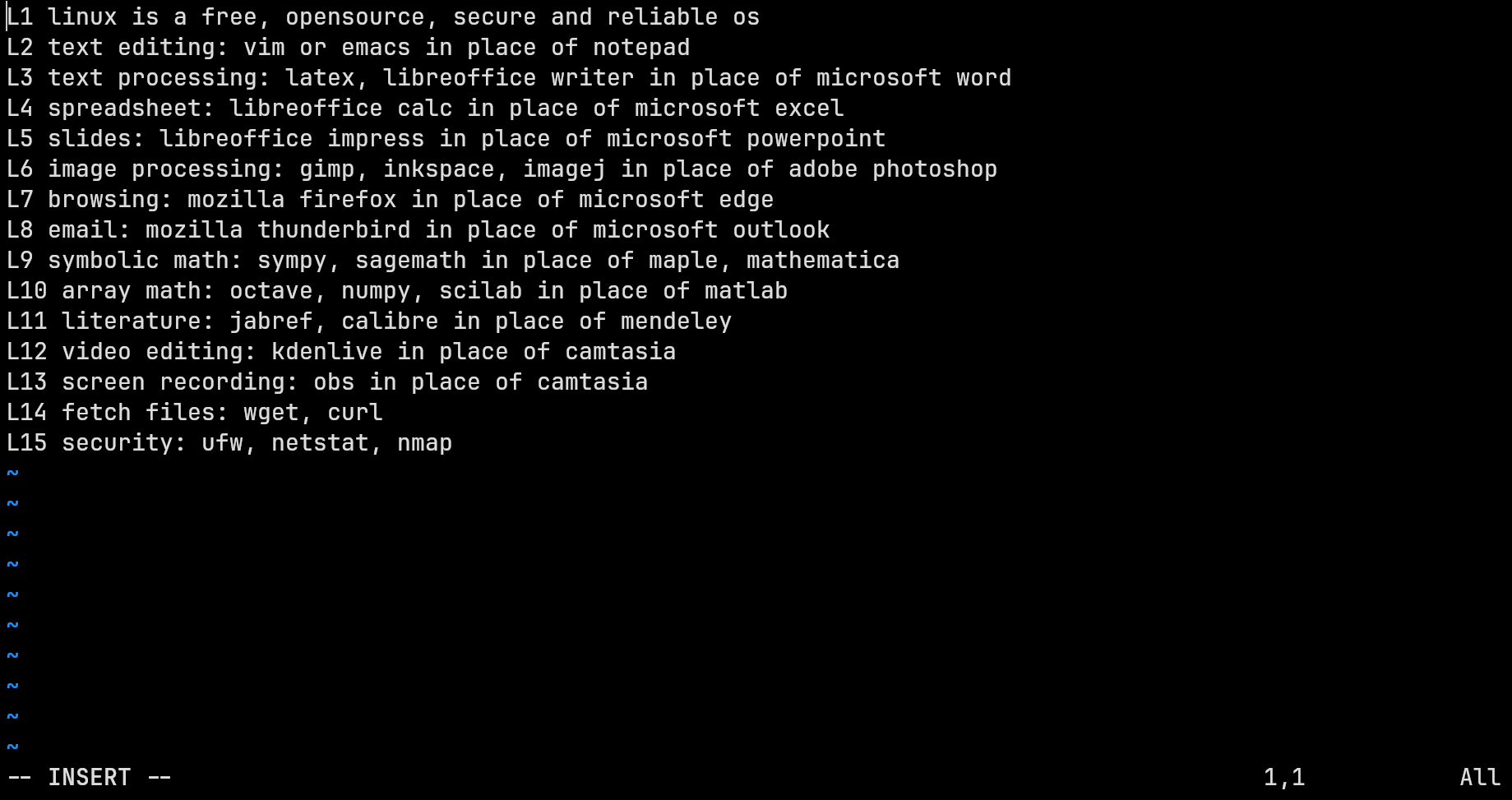
Vim is a powerful modal editor known for speed and efficiency. It operates in different modes, primarily Normal mode and Insert mode.
Basic Vim Modes
- Normal Mode - Navigate and run commands
- Insert Mode - Edit text
- Command Mode - Save, quit, and configure
Common Vim Shortcuts
- i - Switch to Insert mode
- Esc - Return to Normal mode
- :w - Save file
- :q - Quit Vim
- :wq - Save and quit
- dd - Delete a line
- yy - Copy a line
- p - Paste copied or deleted text
- /text - Search for text
Shell Scripting and Automation
The Linux terminal truly shines when tasks are automated. Shell scripts allow repetitive jobs such as backups, updates, and monitoring to be handled efficiently and consistently.
Conclusion
The Linux terminal is a core skill for anyone using Linux seriously. Shells like Bash, Zsh, and Fish define how users interact with the system, while editors like Nano and Vim make terminal-based editing efficient and reliable.
Mastering terminal commands and editor shortcuts significantly improves productivity and builds confidence when working with Linux systems.